How to Protect a Laptop Inside a Bag
To protect a laptop in a bag, choose a close-fitting padded sleeve and keep it upright, away from hard objects and liquids. Check the sleeve dimensions against your laptop, then pack chargers and other gear in separate pockets.
On this page (9 sections)
- How do you protect a laptop in a bag?
- How do you choose a laptop sleeve for a bag?
- How should you pack a laptop bag?
- How do you protect a laptop from bumps and drops?
- How can you keep water away from a laptop?
- What should you check before putting a laptop away?
- Which bag features help protect a laptop?
- What are common mistakes when carrying a laptop in a bag?
- How do you protect a laptop in a bag every day?
To protect a laptop in a bag, use a fitted padded sleeve and keep the computer separate from hard items and liquids. Measure your laptop before choosing a sleeve, then place it upright in a dedicated compartment if your bag has one.
A sleeve can reduce scratches and soften everyday knocks, while good packing helps prevent pressure on the screen and case. For a broader look at bag styles and laptop storage, see our briefcases and laptop bags buying guide.
How do you protect a laptop in a bag?
Put the laptop in a close-fitting sleeve, then secure it upright in a separate compartment. Before packing, shut it down or use the sleep mode recommended by its manufacturer.
Pack heavy items away from the laptop. A charger or water bottle pressing against the computer can create pressure even when the bag's outside looks undamaged.
How do you choose a laptop sleeve for a bag?
Choose by the laptop's actual dimensions, the protection you need, and how much gear you want to carry. Screen size is a useful starting point, but it doesn't account for differences in the laptop's width, thickness, or shape.
Compare your laptop's measurements with a sleeve's internal dimensions. A loose fit lets the computer shift; a very tight fit makes it hard to slide in and out.
See our laptop bag size chart to check sizing.
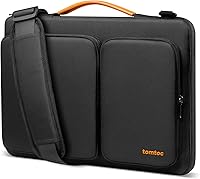
The tomtoc 360 Protective Laptop Bag 15.6 in suits someone who wants reinforced corners, dense padding, and room for a few accessories. Its CornerArmor Technology, spill-resistant recycled fabric, and front pocket make it a good choice for a 15.6 to 16.2 in laptop that fits its 14.56 x 10.43 x 1.06 in interior.
Skip this tomtoc size if your laptop is smaller and shifts inside it, or if it exceeds the interior measurements. Measure the computer, including its thickness, before choosing.
The MOSISO Laptop Sleeve 15 to 16 in is a slim option for someone who plans to slide a sleeve into a briefcase, backpack, or other bag. Foam padding and a fleece lining add a layer against bumps and scratches, while the front pocket holds small items.
Its interior measures 15.55 x 0.79 x 11.42 in. Skip it if your laptop is thicker than that space allows, or if you need water resistance: this sleeve is not water resistant.
How should you pack a laptop bag?
Keep the laptop apart from hard objects, liquids, and anything heavy enough to press against it. Use the sleeve's pockets for accessories, or put accessories in another compartment.
Put a charger in its own pocket or pouch. Wrap its cable loosely, and keep the plug from resting against the laptop screen or case.
Close bottles securely and carry them away from electronics. A sealed bottle can still leak if its cap loosens, so don't place it next to the laptop sleeve.
Avoid stuffing the bag until it bulges. A crowded compartment can press into the laptop, and excess contents can make it harder to close the zipper without catching the sleeve.
For a practical list of items and packing order, see what to put in a work bag.
Does a laptop's position matter when protecting it in a bag?
Yes, keep the laptop upright and secured so it can't slide around. Use the padded laptop section if your bag has one.
Don't put the computer at the bottom of a bag where it can take the force of a hard set-down. If the compartment doesn't support it, use a fitted sleeve and place it between soft, stable items.
The tomtoc 360 Protective Laptop Sleeve 14 in is suited to compatible 14 in laptops when reinforced corners and dense padding are priorities. Its internal dimensions are 12.31 x 8.71 x 0.61 in, so check your specific model's measurements before buying.
Skip this sleeve if your laptop doesn't fit those interior measurements or if you need a larger accessory pocket. The front pocket measures 10.04 x 8.07 in.
How do you protect a laptop from bumps and drops?
Use cushioning around the laptop and handle the packed bag carefully. Padding can soften everyday knocks, but no soft sleeve makes a laptop immune to a hard impact.
The Lacdo 360 Protective Laptop Sleeve 15.6 in fits buyers who want to carry a sleeve by its top handle or slide it into another bag. It has shockproof soft lining, thickened edges, two front zipper pockets, and a large back compartment.
At 15.75 x 1.18 x 11.42 in, it is a fuller option than a slim sleeve. Skip it if you want minimal bulk or your laptop doesn't fit its interior.
Its water-repellent outer fabric can help with splashes, but keep it away from heavy rain and spills.
Set the loaded bag down gently. Keep it from sliding off a chair, and don't stack heavy luggage on top of it.
How can you keep water away from a laptop?
Separate the laptop from liquids and treat water-resistant fabric as backup protection. It can help with splashes, but it isn't a reason to carry an open drink beside a laptop.
Close the sleeve fully, store drinks upright in a different section, and use a rain cover or water-resistant outer bag when rain is expected. Dry a damp bag before putting your laptop inside, including the pockets and seams.
What should you check before putting a laptop away?
Make sure the laptop is cool, dry, and shut down or in the recommended sleep mode. A snug sleeve can limit airflow, so don't pack a warm computer right after heavy use.
Unplug accessories and check for loose objects on the keyboard. A pen or cable caught between the keyboard and screen can press against the display when the bag is closed.
Look inside the sleeve and compartment for grit, crumbs, or damp spots. Brush out debris that could scratch the laptop, and let wet fabric dry before packing.
Which bag features help protect a laptop?
Look for a separate padded section, a secure closure, and enough room to fit the laptop without pressure. Pockets also help keep chargers and other accessories away from the computer.
Check the compartment's opening and interior for hard seams or zippers that could press against the laptop. If you carry a laptop daily, compare the layout with how you pack.
See our guide to what to look for in a laptop backpack for fit, organization, and carrying comfort.
What are common mistakes when carrying a laptop in a bag?
The most common mistakes are choosing by screen size alone, packing heavy items next to the laptop, and overfilling the bag. Each can lead to shifting, pressure, or a poor fit.
Don't assume a water-resistant sleeve is waterproof, and don't leave a drink beside your computer just because the bag has a padded section. Check the laptop's fit with any case or cover you normally use, since added bulk can change whether the sleeve closes easily.
Don't pack the laptop while it's warm or leave small objects on the keyboard. A quick check before closing the bag can prevent pressure from a trapped cable or pen.
How do you protect a laptop in a bag every day?
Choose a sleeve that fits your measured laptop, then use a bag that holds it upright and away from heavy or wet items. For a slim sleeve inside another bag, MOSISO is a practical fit; for reinforced corners and dense padding, choose the tomtoc model that matches your laptop's size; for carry handles and more storage, consider Lacdo.
Before leaving, check that the laptop is cool and dry, the sleeve is closed, and the bag isn't overfilled. If your current bag lacks a separate laptop section, compare options in our briefcases and laptop bags buying guide.
FAQ
Should I put my laptop in a sleeve inside a bag?
Yes, a close-fitting padded sleeve adds a layer between your laptop and other items. Keep it upright in a separate compartment when possible, and don't pack hard objects or heavy items against it.
A sleeve helps reduce everyday bumps and scratches, but it can't prevent every kind of damage.
Is it safe to put a laptop in a backpack?
A backpack can carry a laptop when it has a fitted, padded laptop section and you pack carefully. Keep hard items and liquids away from the computer, and don't overfill the bag.
Use a sleeve if the compartment has little padding or the laptop can shift around.
Can I put a laptop in a bag while it is hot?
Let the laptop cool before putting it in a snug sleeve or tightly packed bag, especially after heavy use. Heat can build up when airflow is blocked.
Shut it down or use the sleep mode recommended by its manufacturer, then wait until it's cool to the touch before packing it.
How do I protect a laptop from rain in a bag?
Use a water-resistant bag or sleeve, keep the laptop away from wet bottles and damp clothing, and close every zipper before going out. Water-resistant fabric can help with splashes, but it doesn't make a bag waterproof.
If the laptop gets wet, power it off and follow the manufacturer's care guidance.
Frequently asked questions
Should I put my laptop in a sleeve inside a bag?
Yes, a close-fitting padded sleeve adds a layer between your laptop and other items. Keep it upright in a separate compartment when possible, and don't pack hard objects or heavy items against it.
A sleeve helps reduce everyday bumps and scratches, but it can't prevent every kind of damage.
Is it safe to put a laptop in a backpack?
A backpack can carry a laptop when it has a fitted, padded laptop section and you pack carefully. Keep hard items and liquids away from the computer, and don't overfill the bag.
Use a sleeve if the compartment has little padding or the laptop can shift around.
Can I put a laptop in a bag while it is hot?
Let the laptop cool before putting it in a snug sleeve or tightly packed bag, especially after heavy use. Heat can build up when airflow is blocked.
Shut it down or use the sleep mode recommended by its manufacturer, then wait until it's cool to the touch before packing it.
How do I protect a laptop from rain in a bag?
Use a water-resistant bag or sleeve, keep the laptop away from wet bottles and damp clothing, and close every zipper before going out. Water-resistant fabric can help with splashes, but it doesn't make a bag waterproof.
If the laptop gets wet, power it off and follow the manufacturer's care guidance.